Multi-Factor Authentication (MFA)
Safebucket supports TOTP-based multi-factor authentication to add an extra layer of security to local accounts. Users can enroll authenticator apps such as Google Authenticator, Authy, or 1Password to generate time-based one-time passwords.
Configuration
Enable MFA Requirement
When enabled, all local users must complete MFA verification after login before accessing any resources.
Environment Variables
| Variable | Description | Default | Required | Valid Values |
|---|---|---|---|---|
APP__MFA_ENCRYPTION_KEY | 32-character encryption key for MFA secrets | - | ✅ | Exactly 32 characters |
APP__MFA_REQUIRED | Require MFA for all users | false | ❌ | true, false |
APP__MFA_TOKEN_EXPIRY | MFA token expiry in minutes | 5 | ❌ | 1-30 |
APP__ACCESS_TOKEN_EXPIRY | Access token expiry in minutes | 60 | ❌ | 1-1440 |
APP__REFRESH_TOKEN_EXPIRY | Refresh token expiry in minutes | 600 | ❌ | 1-720 |
YAML Configuration
app:
  mfa_required: true
  mfa_encryption_key: your-32-byte-encryption-key
  mfa_token_expiry: 5
  access_token_expiry: 60
  refresh_token_expiry: 600
APP__MFA_ENCRYPTION_KEY must be exactly 32 bytes. Keep this key safe — losing it will invalidate all enrolled MFA devices.
How It Works
Authentication Flow with MFA
- Local user logs in with email/password
- If MFA is required (
mfa_required: true) or the user has enrolled MFA devices, a restricted MFA token is issued instead of a full access token - The user provides a 6-digit TOTP code from their authenticator app
- After successful verification, a full access token is issued
Optional vs Required MFA
mfa_required: false(default): Users can optionally enroll MFA devices. If they have enrolled devices, MFA verification is required at login. Users without devices skip MFA.mfa_required: true: All users must complete MFA verification. Users without enrolled devices will be prompted to set up a device before they can access the application.
Enrolling a Device
After logging in with MFA enabled, you are prompted to set up a TOTP device.
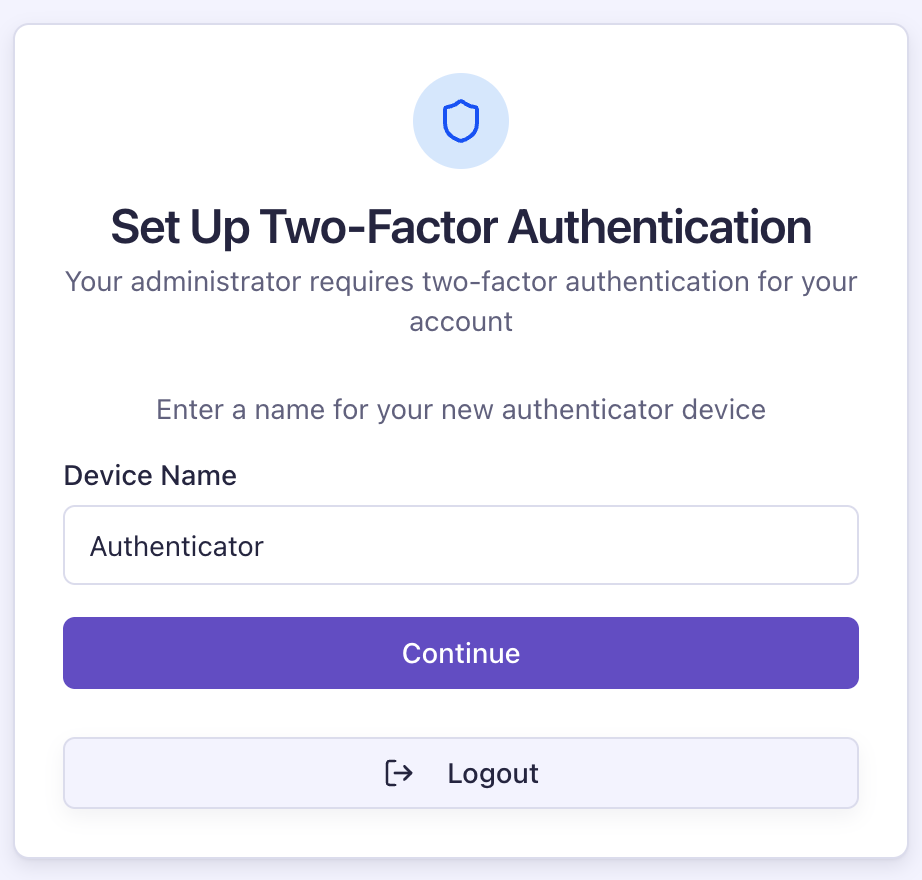
1. Name your device
Enter a name for the device (defaults to "authenticator").
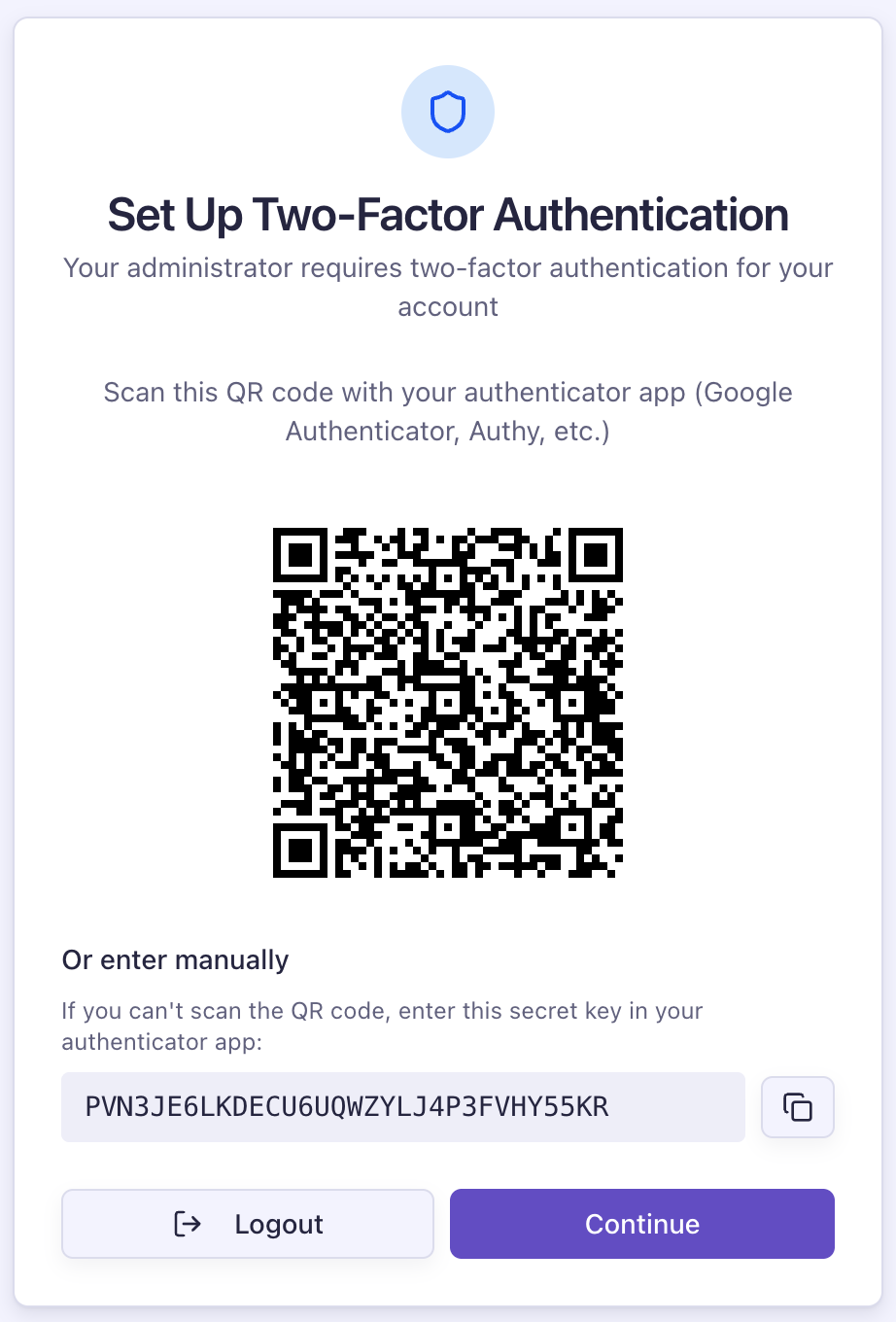
2. Scan the QR code
Scan the QR code with your authenticator app (Google Authenticator, Authy, 1Password, etc.) or copy the secret manually.
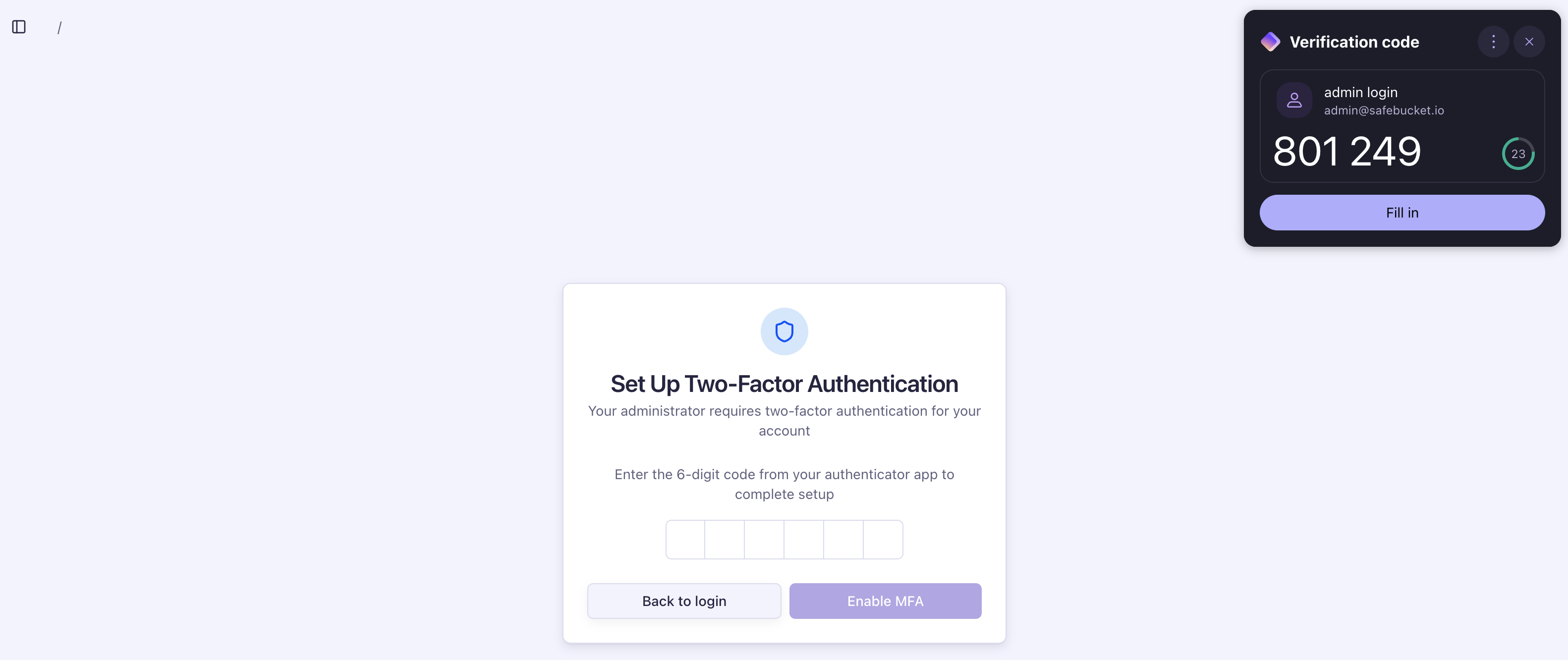
3. Enter the verification code
Enter the 6-digit code displayed in your authenticator app to verify the device.
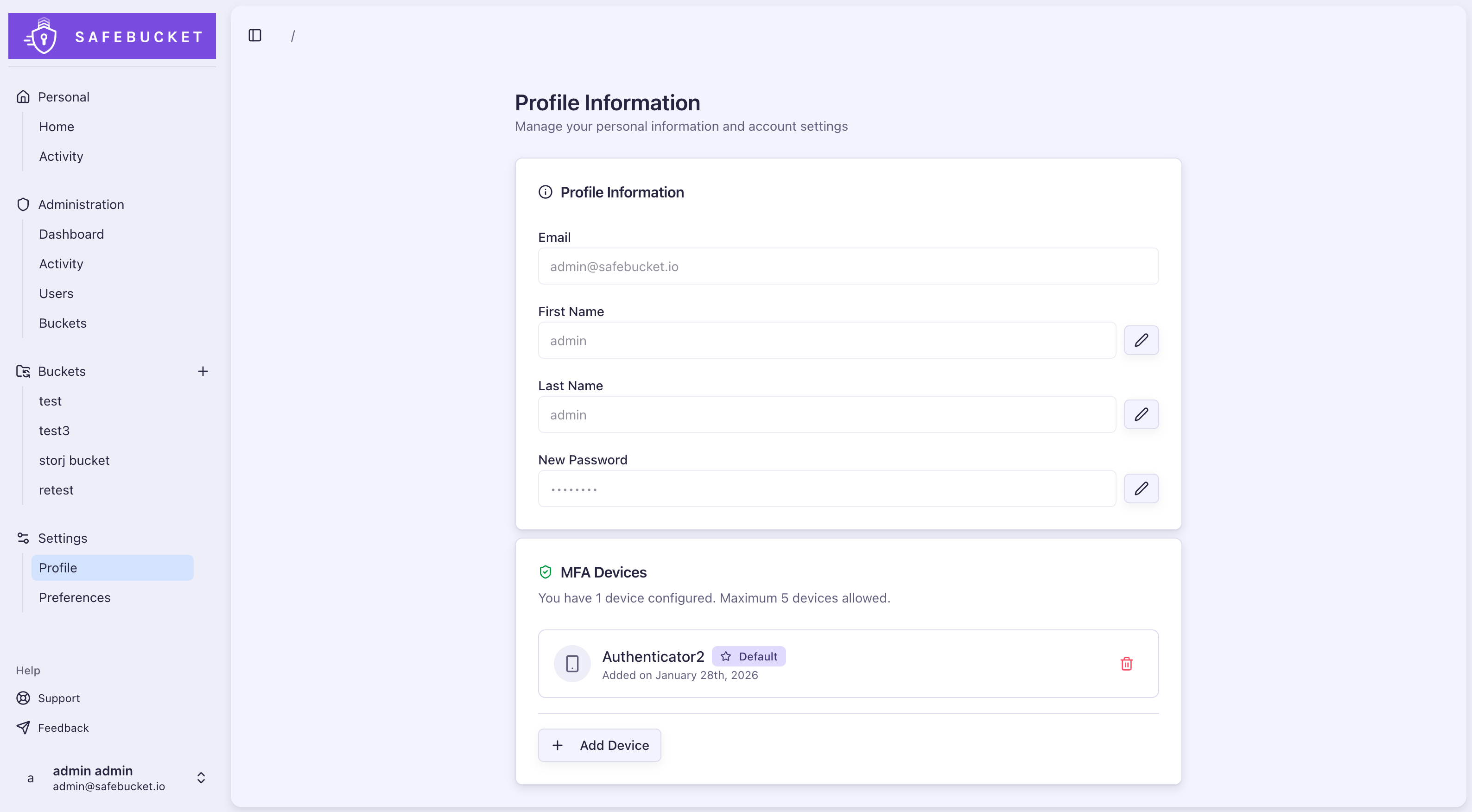
4. Device enrolled
Once verified, the device appears on your profile page. You can manage your enrolled devices from there.
Security Considerations
- TOTP secrets are encrypted at rest using AES with the configured
APP__MFA_ENCRYPTION_KEY - TOTP codes have replay protection — each code can only be used once per device
- Password confirmation is required to add or remove MFA devices
- Email notifications are sent when devices are enrolled or removed